
A vessel with practical detail
Choose vessel type, size, purpose and condition. Review construction, working deck zones, officers, crew roles, cargo and useful vulnerabilities.
Make the passage part of the adventure
A working ship. A harbour with its own pressures. A crossing worth preparing. Bring vessel, crew, cargo and landfall together, then shape the voyage for your table.
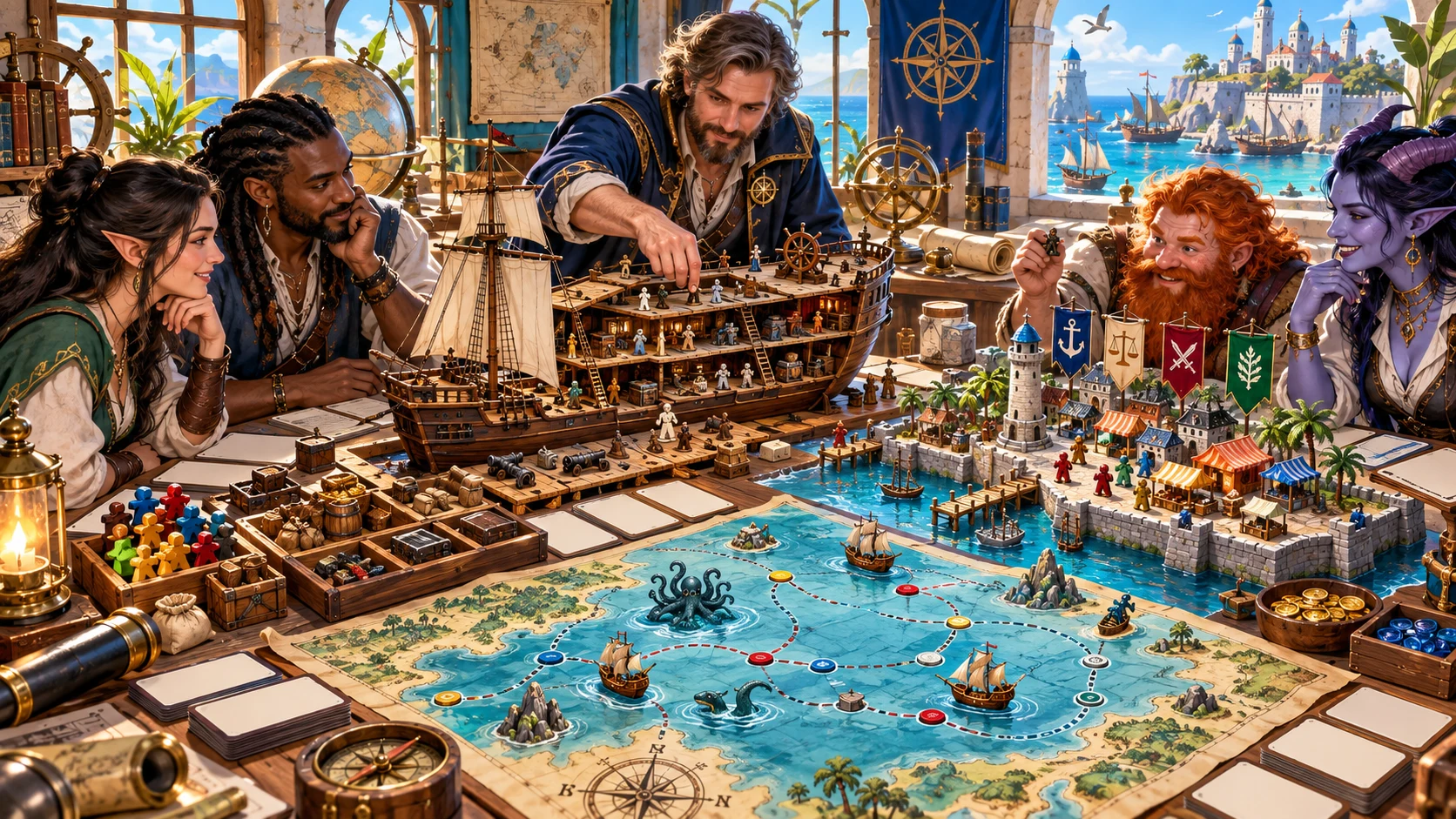
Beyond a ship name and destination
Keep maritime context together, then adapt the details to your campaign.
Choose vessel type, size, purpose and condition. Review construction, working deck zones, officers, crew roles, cargo and useful vulnerabilities.
Pilotage, customs, docks, warehouses, yards and services give arrival a structure. Add harbour politics, traffic and hazards to suit your setting.
Route, stops, supplies, weather context, piracy signals and onboard events suggest decisions. Duration and handling are broad guidance for the DM.
Consider inspection, cargo seals, watch relief and storm repairs. These are preparation notes for consequences you decide at the table.
Where vessel and port meet
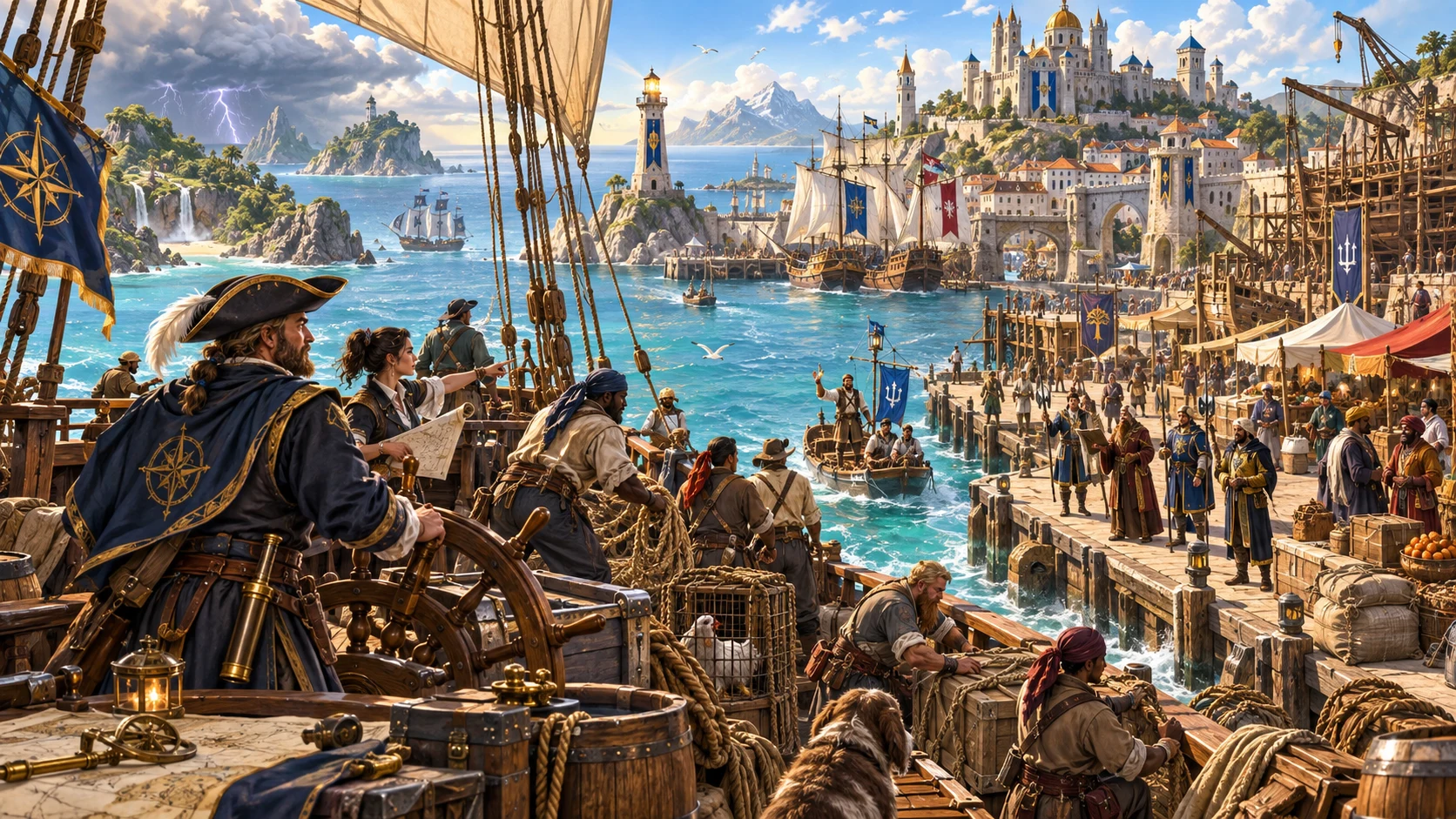
The illustration shows a crew approaching busy quays, shipyards and markets. Those practical details can turn landfall into a decision about pilotage, inspection, cargo or repairs.
The workspace supplies vessel, manifest and harbour notes to adapt. Its layout is descriptive; the illustration is not a generated map or forecast.
From an intention to a linked record
Use the vessel, port or voyage material you need from the same complete workspace.
Select Vessel, Port or Voyage, then choose vessel type, port scale and route length. All three sets of sections are generated together.
Deep exposes crew, cargo, condition, waters, supplied weather and threat choices. Quick hides these controls while retaining their values.
Read the result, edit structured fields or use a scoped reroll. Check identities, player handout and tactical notes after any change.
Keep an account record, open a prior version or export JSON. Select the reviewed player view when sharing material with the party.
What the current tool provides
A structured starting point to adapt, with decisions and live outcomes kept at your table.
Choose a task, then use its sections from one complete linked workspace. Vessel identity, harbour details and passage notes are generated together, even when you only need one of them.
Quick shows task, vessel type, port scale, route length and seed. Deep adds size, purpose, condition, crew, cargo, waters, weather context, threats, trade, magic and discovery. Hidden Deep choices still apply in Quick.
Prepare construction, deck zones, captain and officers, crew roles, manifest, condition, history, hidden spaces and weaknesses. Counts and handling notes are preparation guidance rather than a naval simulation.
Review docks, warehouses, customs, guards, shipyards, merchants, services, traffic, common cargo, smuggling pressure, hazards and politics. The harbour is maritime context, with a broad template to adapt to your setting.
Use route legs, stops, duration guidance, supplied weather context, hazards, piracy signals, onboard events, discoveries, crew pressure and arrival notes. These are authored prompts and broad guidance, not forecasts or live tracking.
Edit the complete JSON workspace or reroll a vessel, crew, port, voyage or threats group. Locks guard their matching scoped reroll; full Generate replaces the record. Review linked details and the player handout after changes.
Save through your existing Desktop Command Centre session. Search titles, tasks, vessel types, port scales and notes. Duplicate a variant or open up to ten prior results; inspect linked names and current controls before reuse.
Prepare an eligible boarding, deck, dockside, pirate, sea-monster or port-raid scene in a saved Standard encounter slot. Combat PRO ownership and available plan capacity are required; choose actual combatants there.
A short setup or a closer direction
Specialist starting modes set some choices; inspect the rest before generating.
Task, vessel type, port scale, route length and seed remain visible. Hidden Deep choices still apply in Quick, including earlier cargo and threat settings.
Choose size, purpose, condition, crew, cargo, sea and weather context. Direct piracy, naval threat, trade importance, magic and discovery density.
Prepare merchant or passenger travel, an exploration vessel, a working port, freeport smuggling or a naval patrol. Each button sets part of the form.
Start from storm damage, pirate threat, mutiny pressure or a magical vessel. These shape labels and preparation guidance rather than running live systems.
Keep the maritime preparation together
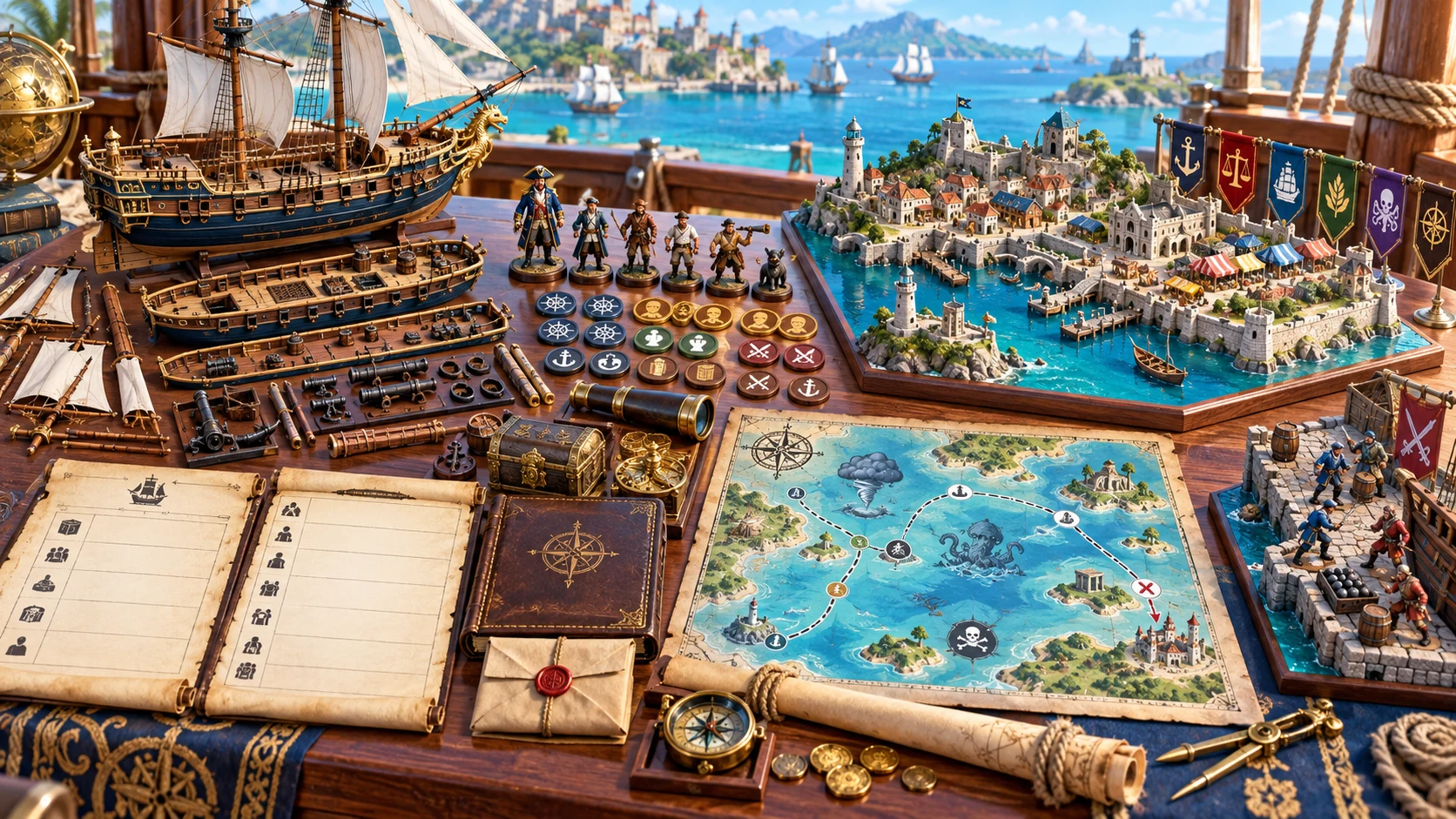
The illustration brings ship sections, crew figures, manifests, a harbour model and a voyage map together. The actual result is a structured record of vessel, port and passage notes.
Use relevant sections independently. Review the handout and tactical notes after edits; graphical maps, models and live naval movement remain separate.
Preserve a useful identity, then revise
Structured edits and rerolls need a review of linked details.
Lock vessel, crew, port, voyage or threats against its matching reroll. Full Generate replaces the record and does not preserve these grouped locks.
Scoped rerolls keep vessel and port identities and replace selected top-level sections. Much template text can stay the same; retained choices and related sections do not automatically update.
Most group rerolls do not refresh the player handout. A threats reroll replaces it and can introduce names that disagree with retained identities. Review both views before sharing.
The seed works with full choices, changing reroll state, base record and current product content. A visible seed alone is insufficient. There is no JSON import or one-click replay control.
Review structure, meaning and audience
The checks help organise a record; they do not interpret the truth of your writing.
Use the structured JSON editor for vessel, port, manifest, voyage and handout details. Edits do not automatically refresh the player handout, cross-links or derived scene notes.
Generated handouts omit dedicated hidden spaces, weaknesses, secret parcel location and private crew pressure. The declared cargo label can still say Concealed contraband. Review every shared view.
Validation checks required sections, crew-role entries, a cargo separation flag and a small set of private-field terms. Arbitrary secrets in prose are not automatically classified.
Weather is supplied context, duration is broad guidance and crew pressure is a possibility. This tool does not forecast weather, draw maps or run naval movement, morale, damage or outcomes.
Choose access for your toolkit
Begin with a free VISINVOKE account, then review the required selection and subscription.
Select Maritime & Seafaring Generator individually. Creating a free account does not by itself include paid generator access.
Choose five eligible standalone generators. Review tools and terms in your account; a selection pack does not include every VISINVOKE product.
Choose more capacity when it suits your toolkit. Review actual tools and reselection terms before changing your subscription.
Selected scene preparation requires Combat PRO ownership, a free saved Standard encounter slot and current plan capacity. It preserves the active encounter; choose actual combatants there.
Save through the existing Desktop Command Centre session and required generator access. Search titles, tasks, vessel types, port scales and owner notes. There is no autosave or separate setup preset.
Same-ID updates retain up to ten prior results. Open a prior version and save it to make it current. Same-seed designs can update the same saved identity.
Open restores result, notes and grouped locks, not form choices, seed or reroll state. Duplicate changes identity and vessel name without refreshing linked voyage or player names.
Copy, download JSON or print the current DM or player view. Full DM exports contain private material. Start Here and How Do I explain available controls; inspect a handout before sharing.
Selected Combat PRO preparation sends one scene’s zones, objective and inactive context notes. Choose actual combatants and a battlefield there. Repeating the same workspace identity and selected scene does not update existing preparation after edits.
Build your tabletop toolkit
Each card opens its own public website. Review purpose and access separately; links do not promise included access or automatic synchronisation.

Discover and open your supported Windows products through one connected VISINVOKE account.

Explore environment packs for tactical locations and the places your encounters unfold.
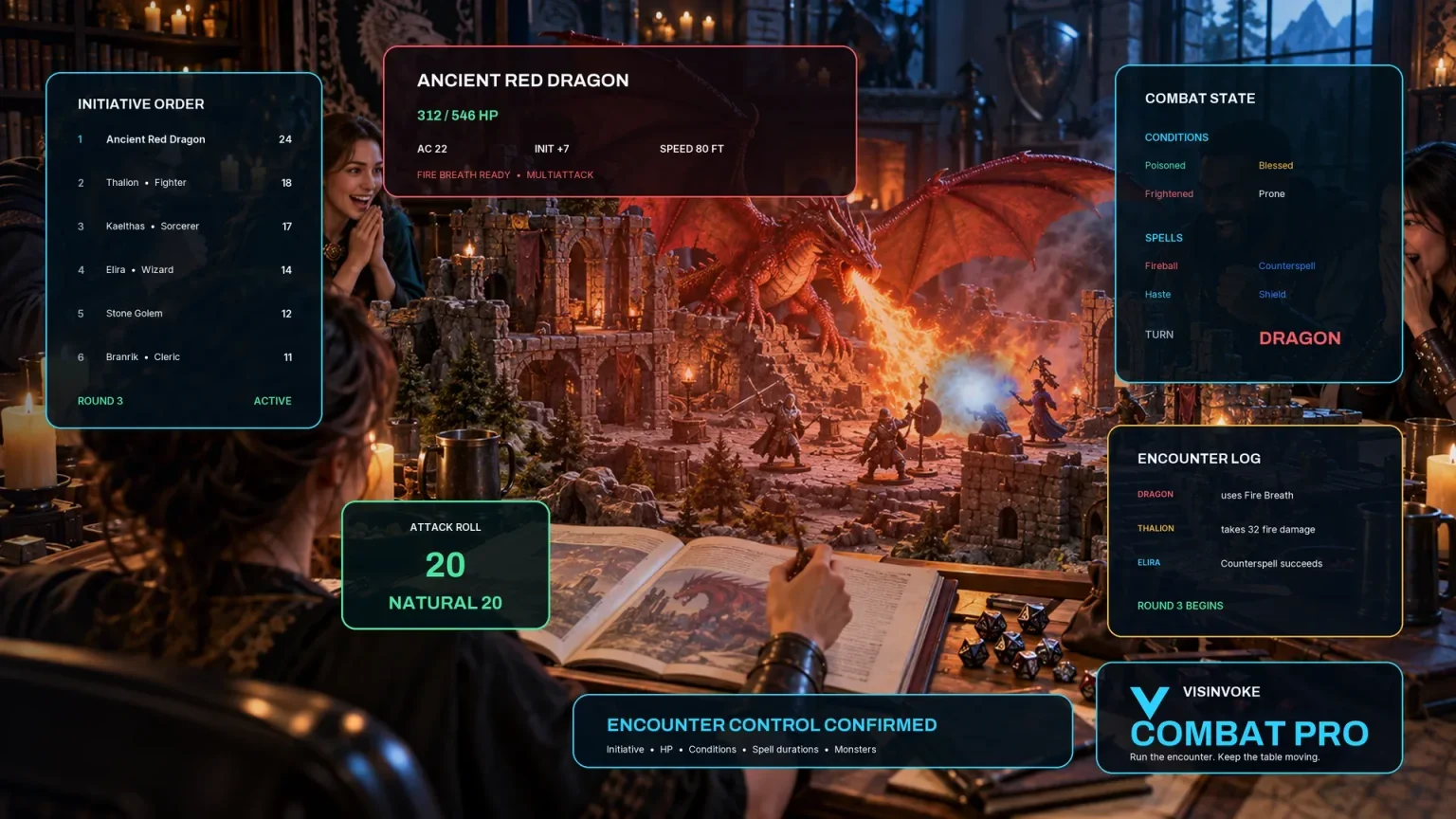
Review prepared opposition, tune creature statistics and run tabletop encounters with its own access.

Create focused character, monster, item and location images to complement your tabletop preparation.

Create guided commercial visuals for websites, brochures and wider creative projects.

Explore a separate futuristic RPG experience with its own world, characters and progression.
Product artwork illustrates maritime preparation, not application screens or actual generated image output.
Quick answers
Understand the current controls and review limits before opening the workspace.
It creates one linked vessel, port and voyage workspace with identities, construction, deck zones, officers, crew, cargo, harbour services, route, stops, hazards, events, discovery and arrival notes. Choose Vessel, Port or Voyage to set your task; all three sets of sections are still generated, and you can use the relevant material independently. Many detailed sections use a broad template. Graphics, maps, models, weather forecasts and live naval simulation are outside this tool.
Quick keeps task, vessel type, port scale, route length and seed visible. Deep exposes size, purpose, condition, crew quality, cargo, waters, weather context, piracy, naval threat, trade, magic and discovery. Switching to Quick retains hidden choices. Specialist buttons set some controls for merchant passage, working port, exploration, smuggling, patrol, storm damage, pirate threat, crew pressure or magical vessel; review the remaining choices before generating.
Grouped locks protect only their matching scoped reroll; full Generate replaces the complete record. A scoped reroll retains vessel and port identities and replaces the selected top-level sections, while most detailed template text can remain the same. Threats rerolls replace the player handout and can introduce names that disagree with retained identities; other groups do not refresh it. Review both views. Full choices, changing reroll state, base record and current product content matter alongside the seed. Save or export the exact result; there is no JSON import or one-click replay.
Generated handouts omit dedicated hidden spaces, weaknesses, the secret parcel location and private mutiny risk. The declared cargo label can still say Concealed contraband. The JSON editor and most scoped rerolls do not refresh the player handout or derived scene notes, and arbitrary secrets in prose are not automatically classified. Validation checks structure and a small set of private-field terms, not the meaning of your writing. Review the actual handout before sharing. Copy, download and print use the current audience view; full DM exports contain private material.
The existing Desktop Command Centre session and required generator access connect the account library. Saving validates the record, and same-ID updates retain up to ten prior results. Open a prior version and save it to make it current. Search titles, task, vessel type, port scale or owner notes. Open restores result, notes and grouped locks, but not form choices, seed or reroll state. Duplicate changes identity and vessel name without refreshing linked voyage or player names; review them. There is no autosave, separate setup preset or delete control. Same-seed designs can update the same saved identity.
Choose one eligible tactical scene. The existing account session, Combat PRO ownership, a free saved Standard encounter slot and current plan capacity are required. The action prepares zones, an objective and inactive context notes while preserving the active encounter. It sends a reminder to choose owned stat blocks rather than generating actual combatants. Select your battlefield and combatants in Combat PRO. Complete voyage, port, manifest and private crew pressure stay here. Repeating the same workspace identity and selected scene does not duplicate or update the existing preparation after edits. Standalone generator access is separate.
Continue in VISINVOKE
Create a free VISINVOKE account and choose required generator access.
Get Desktop Command Centre from your account installer page. Sign in on Windows, then open Maritime & Seafaring Generator.